NeuroDynamic
The ClaraVoca guide
Every tool and setting, explained in three layers. Read as much or as little as you need. ClaraVoca is coming soon; the screens show version 1.22 with example data. Take the click-through tour.
Getting started
Getting ClaraVoca running
Install it, take the short tour, and the four tools are one key away in any app.
What it does
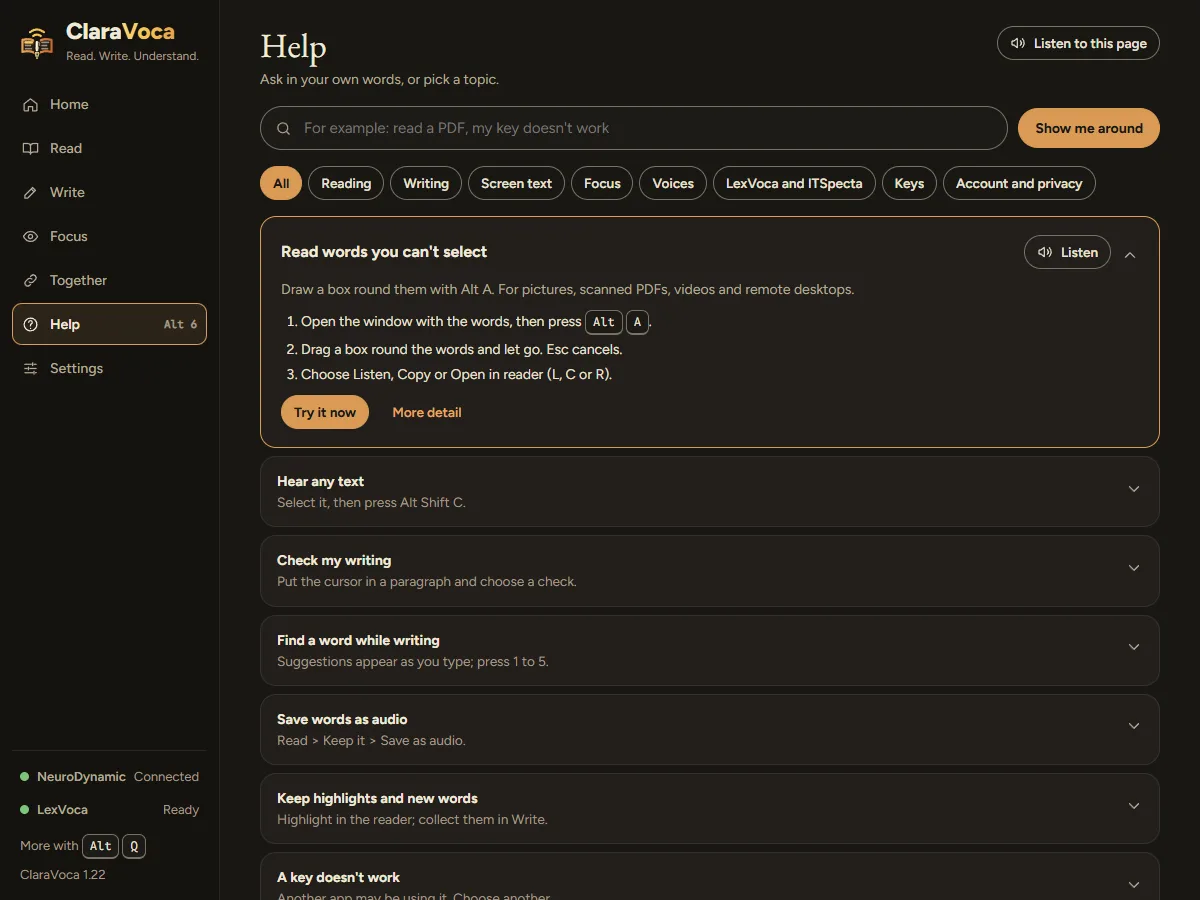
- Install from the downloads page. ClaraVoca runs on Windows 11 and sits quietly in the tray until you need it.
- The tour starts the first time you open it. It shows each tool where it lives, and you can pause and pick up where you left off. Replay it any time from Help > Show me around or Settings > About and privacy.
- No account needed to start. Reading aloud, grabbing text from the screen, the tint and ruler, and spelling all work on your PC.
- Sign in with your free NeuroDynamic account when you want grammar, Easier versions and explanations. It’s the same account as LexVoca and ITSpecta.
Why
The tools only help if you remember them. A tour over the real app, with the real keys, sticks better than a page of instructions.
Technical detail
- Settings and your words live in your Windows user profile.
- ClaraVoca follows the Windows animation setting: with reduced motion, nothing moves.
Finding your way
Seven pages in the sidebar, each a key away, and everything is a search away.
What it does
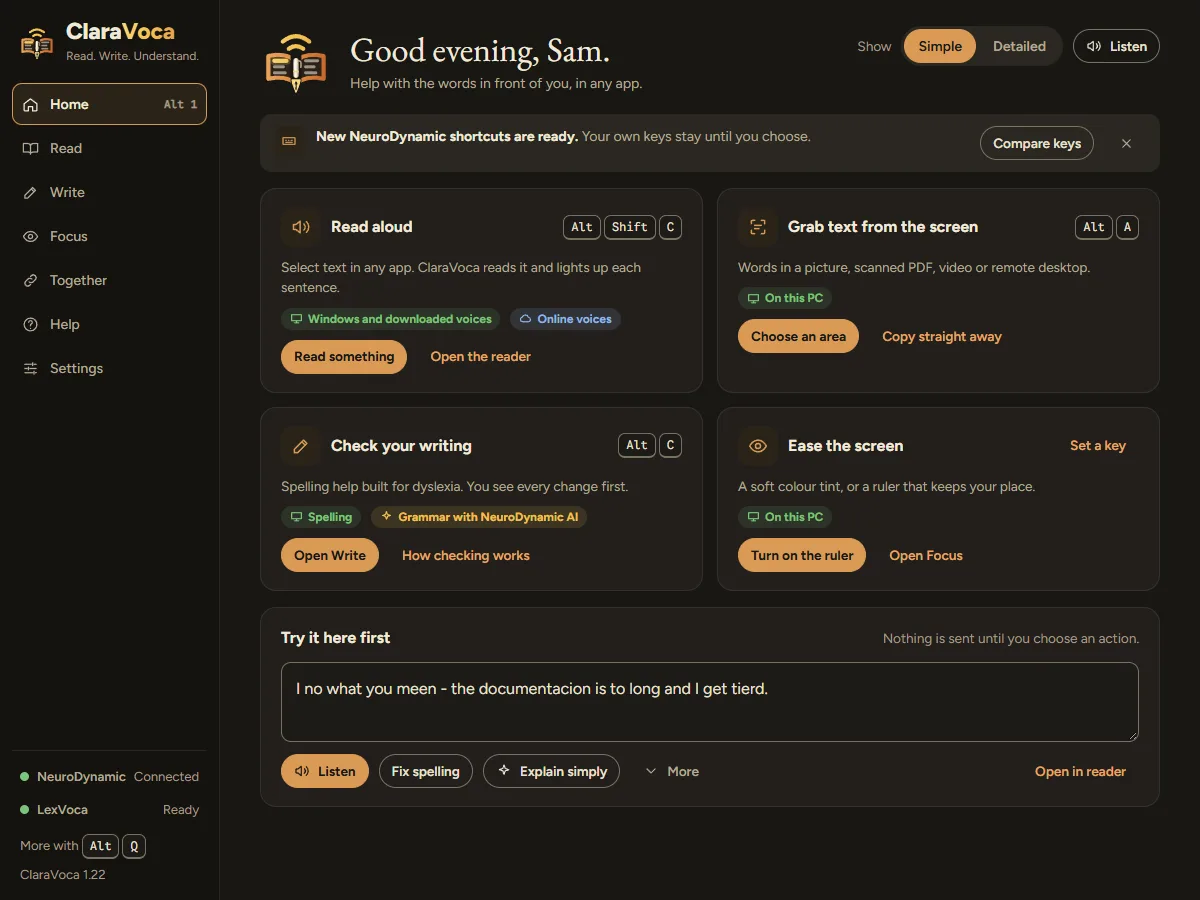
- The sidebar: Home, Read, Write, Focus, Together, Help and Settings. Hold Alt and press 1 to 7 to jump between them.
- Listen to this page sits at the top of every page, so you can hear any page read aloud.
- Simple or Detailed on Home: Simple shows the tools; Detailed adds what each one does and why it helps. Change it any time, or in Settings > Appearance.
- Two lights at the bottom of the sidebar show your NeuroDynamic account and whether LexVoca is running. Each opens the page that sorts it out.
- More with Alt+Q opens the family menu of shortcuts across all three apps.
Why
Fewer pages, each named after what you’re doing, means less to remember. The lights change shape as well as colour, so they work for everyone.
Hear it
Read any text aloud
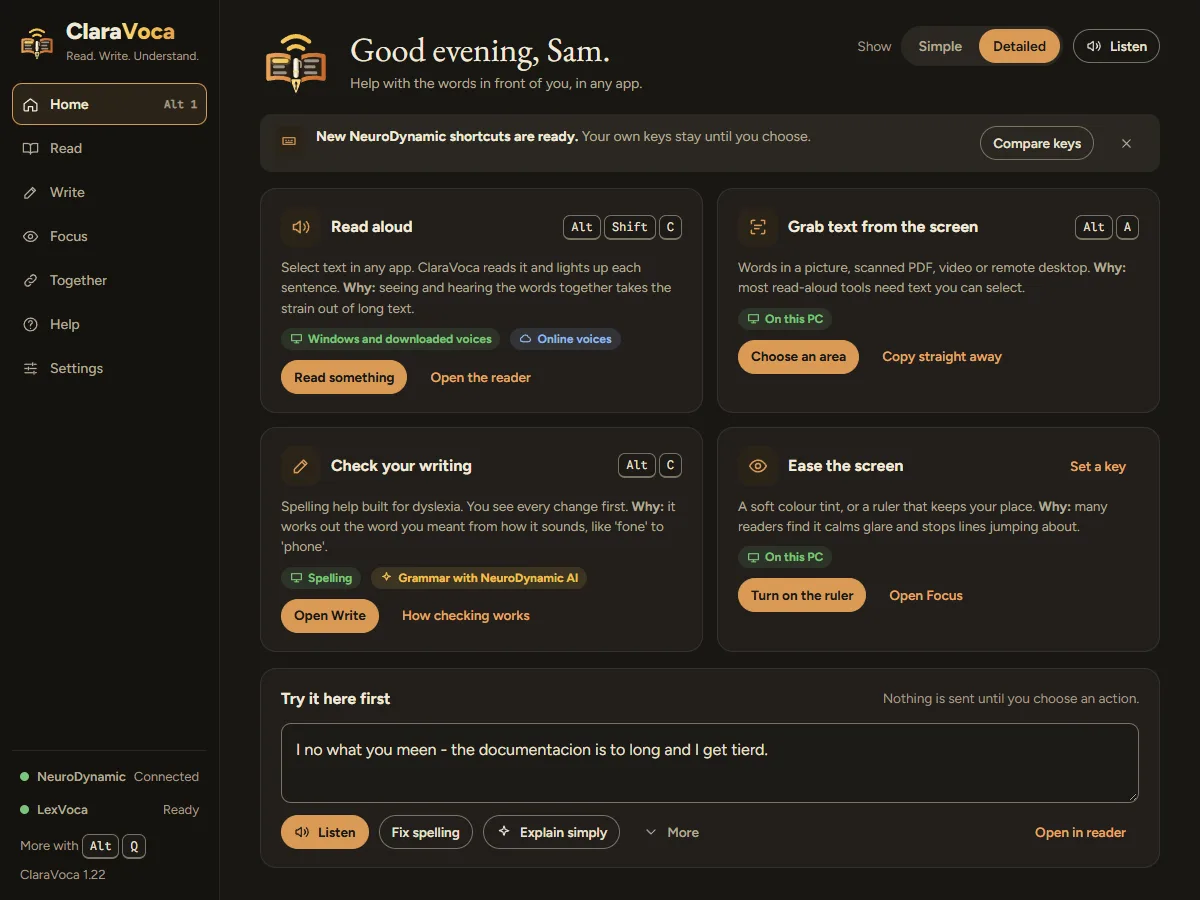
Select text in any app and press Alt+Shift+C. ClaraVoca reads it and lights up each sentence.
What it does
- Select, then press Alt+Shift+C in any app: a web page, an email, a document.
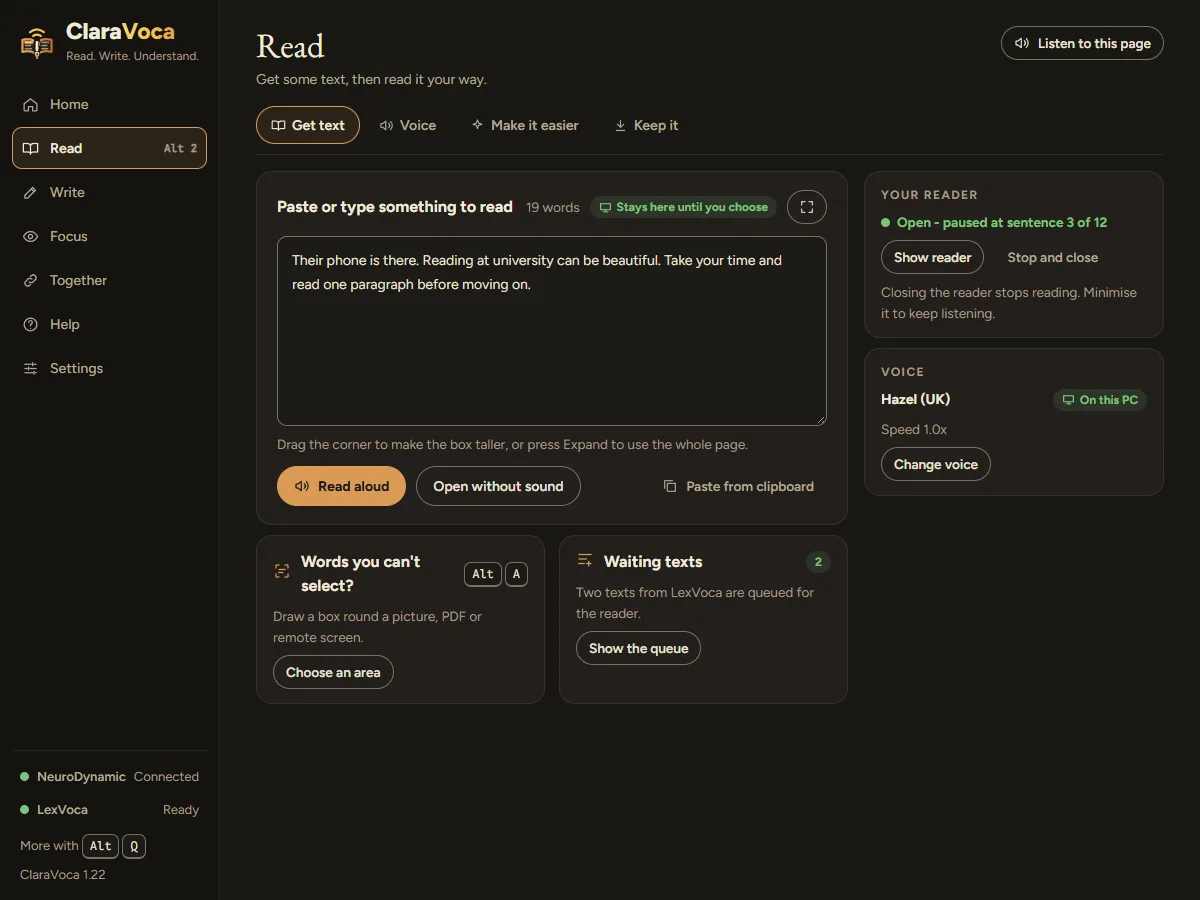
- Or paste it into Read > Get text and choose Read aloud. Open without sound shows it in the reader to read yourself.
- Expand turns the paste box into a full page for long text, with a word count and how long it will take to listen.
- Waiting texts: anything LexVoca sends you to read waits in a queue in the reader.
Why
Many dyslexic readers find hearing and seeing the words together helps them follow and remember. Lighting up the sentence keeps your eyes and ears on the same words.
Technical detail
- Long texts are read sentence by sentence, so you can pause, skip or go back one sentence at a time.
The reader
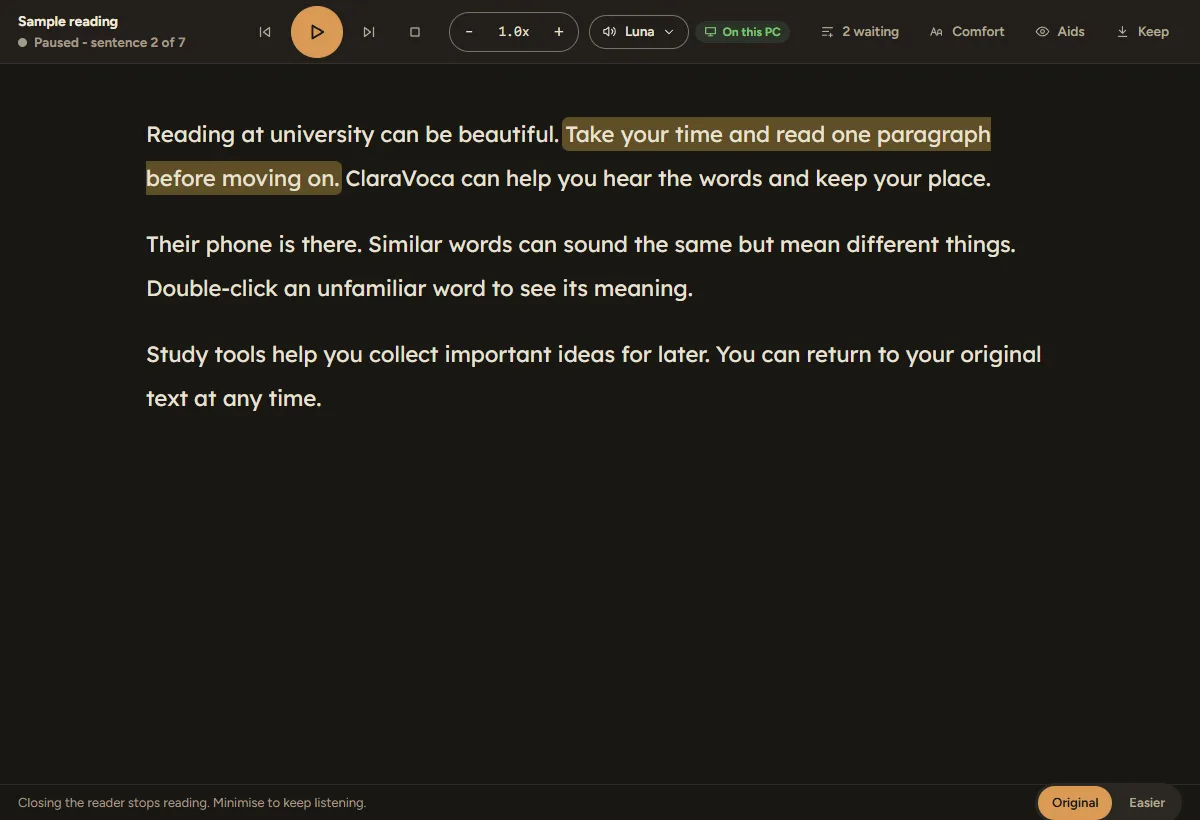
A calm window for reading and listening, with your fonts, spacing and colours.
What it does
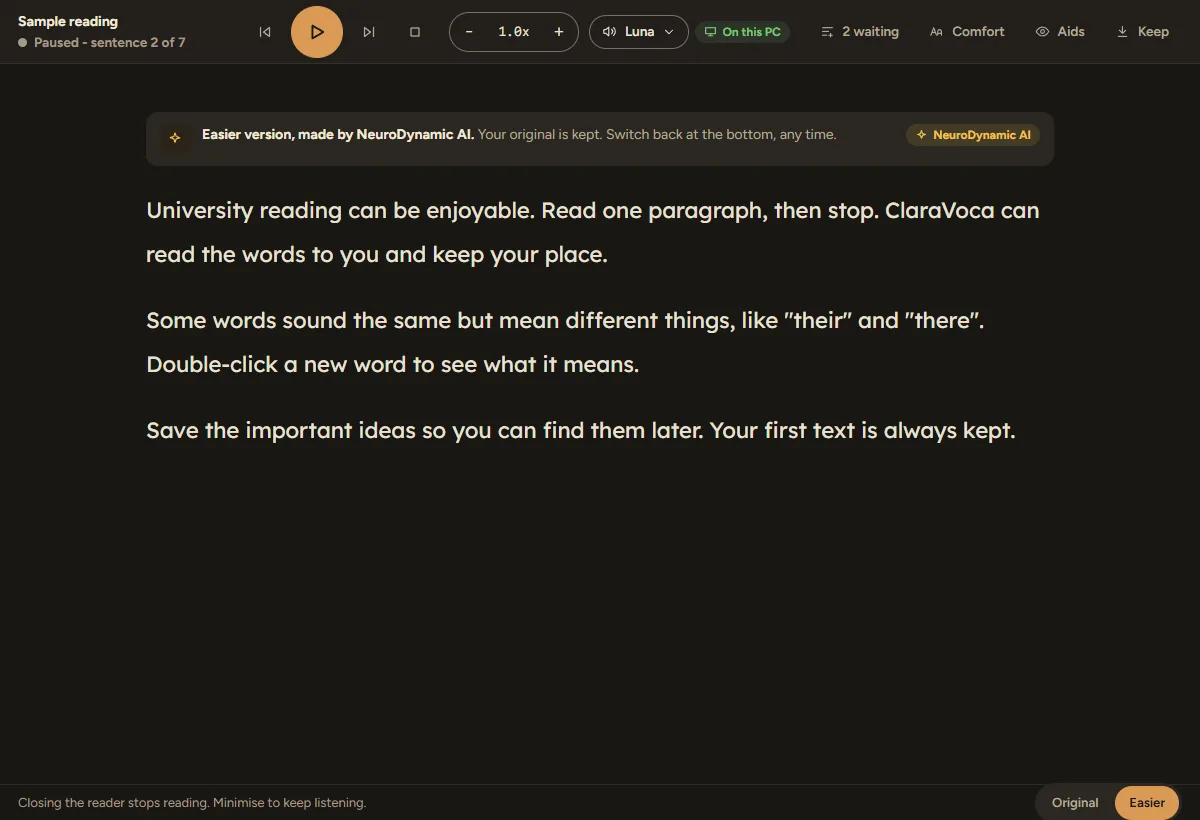
- Play, pause, back and forward one sentence at a time, and change the speed.
- Voice: pick a voice and see where it runs (on this PC, or online).
- Comfort: font, size, line and letter spacing, and colours.
- Aids: line focus (dims all but the lines you’re on), one paragraph at a time, split long words into syllables, and a quiet break reminder.
- Keep: save the text, your highlights and new words, or save it as audio.
- Original and Easier along the bottom switch between your text and an easier version.
Why
Everyone reads differently. Putting the controls in one calm window means you set it up once and it stays that way.
Technical detail
- Closing the reader stops reading. Minimise it to keep listening while you work.
Voices
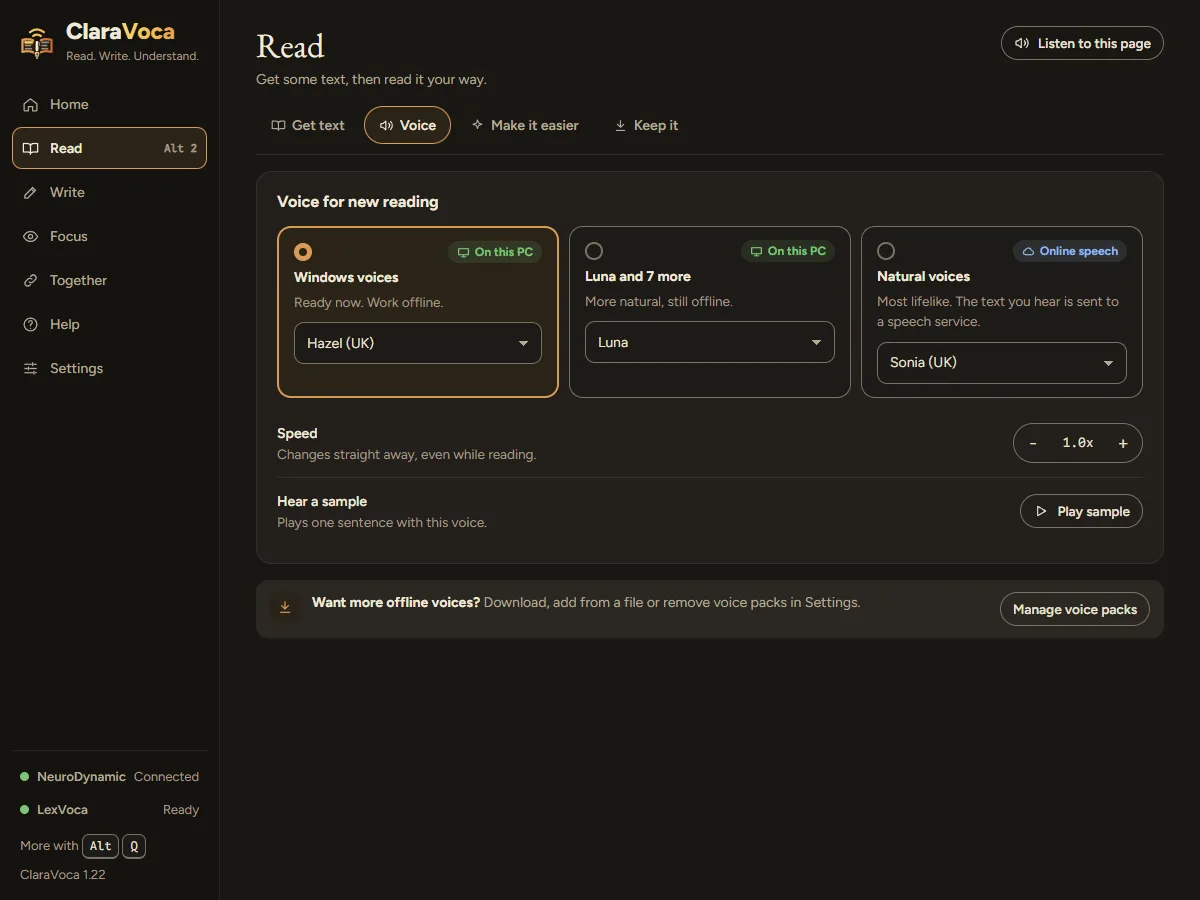
Choose a voice that suits you: on your PC, downloaded once, or online.
What it does
- Windows voices are ready now and work offline.
- Download once: more natural voices that then run on your PC, offline.
- Online voices sound most natural and need the internet.
- Speed and Hear a sample let you try before you choose.
Why
A voice you like is a voice you’ll keep listening to. Offline choices keep your reading private.
Technical detail
- Manage downloaded voice packs in Settings > Reading and voices.
Grab it
Grab text from the screen
Words in a picture, a scanned PDF, a video or a remote desktop: draw a box and ClaraVoca reads them.
What it does
- Press Alt+A, then drag a box around the words.
- Choose Listen, Copy or Open in the reader. Copy straight away on Home skips the choice.
- Press Esc to cancel.
Why
Most read-aloud tools need text you can select. A lot of what people struggle with is in pictures, scans and remote screens.
Technical detail
- Text recognition runs on your PC. Choose the recognition engine and layout in Settings > Screen text.
Check it
Check your writing
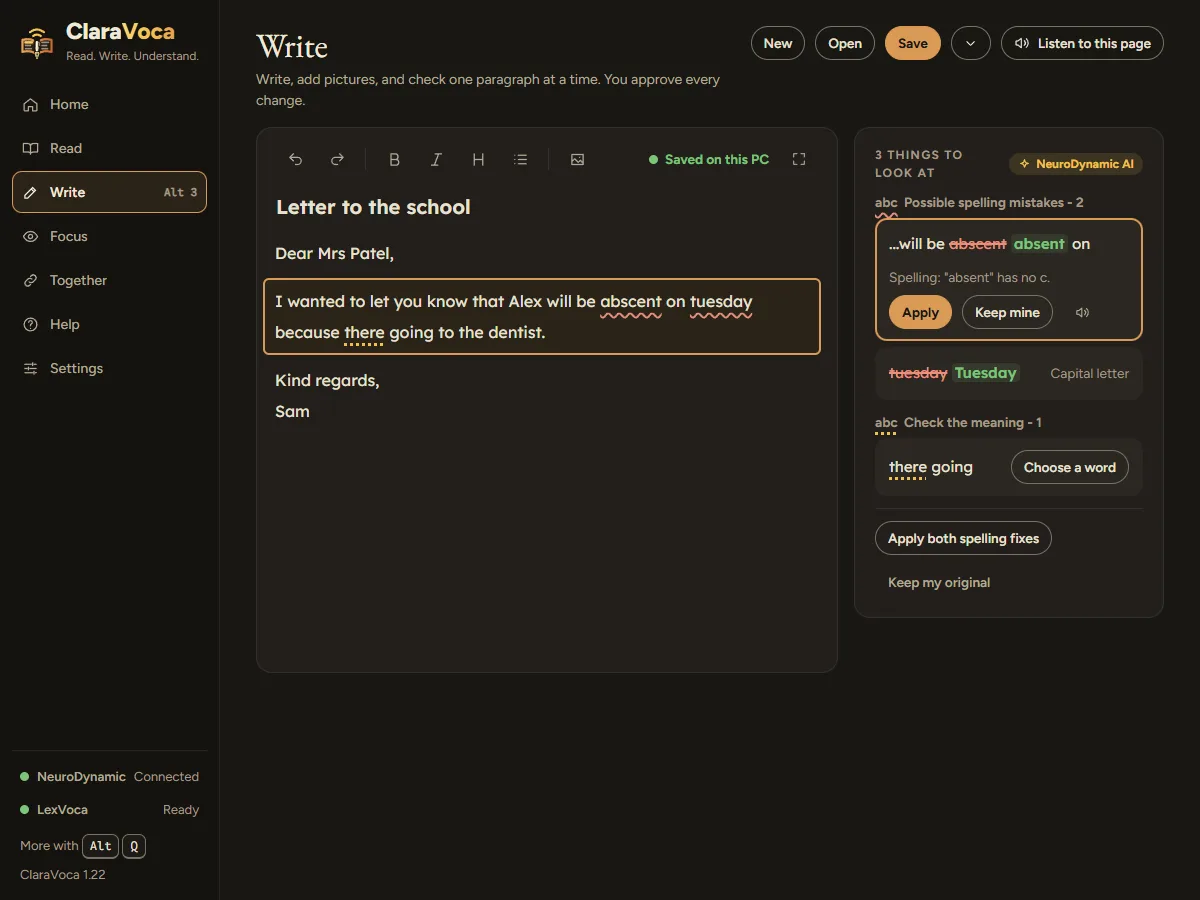
Spelling built for dyslexia: it works out the word you meant from how it sounds. You see every change first.
What it does
- Open Write (Alt+3), or press Alt+C in any app to check the paragraph you’re in.
- The paragraph being checked is outlined. Suggestions appear beside it, side by side with your words.
- Apply all, one at a time, or Keep mine. Nothing changes until you choose.
- Listen to the corrected text, or Copy it.
- Expand gives a full-width page with the check tools in a slim rail.
Why
Everyday checkers expect small slips, like a missing letter. ClaraVoca looks at how the word sounds, so it catches the spellings they miss, like “tuseday” for “Tuesday”.
Technical detail
- Spelling works offline on your PC. Grammar and “check the meaning” use NeuroDynamic AI.
- If an AI check fails, your original text is kept untouched.
Check the meaning
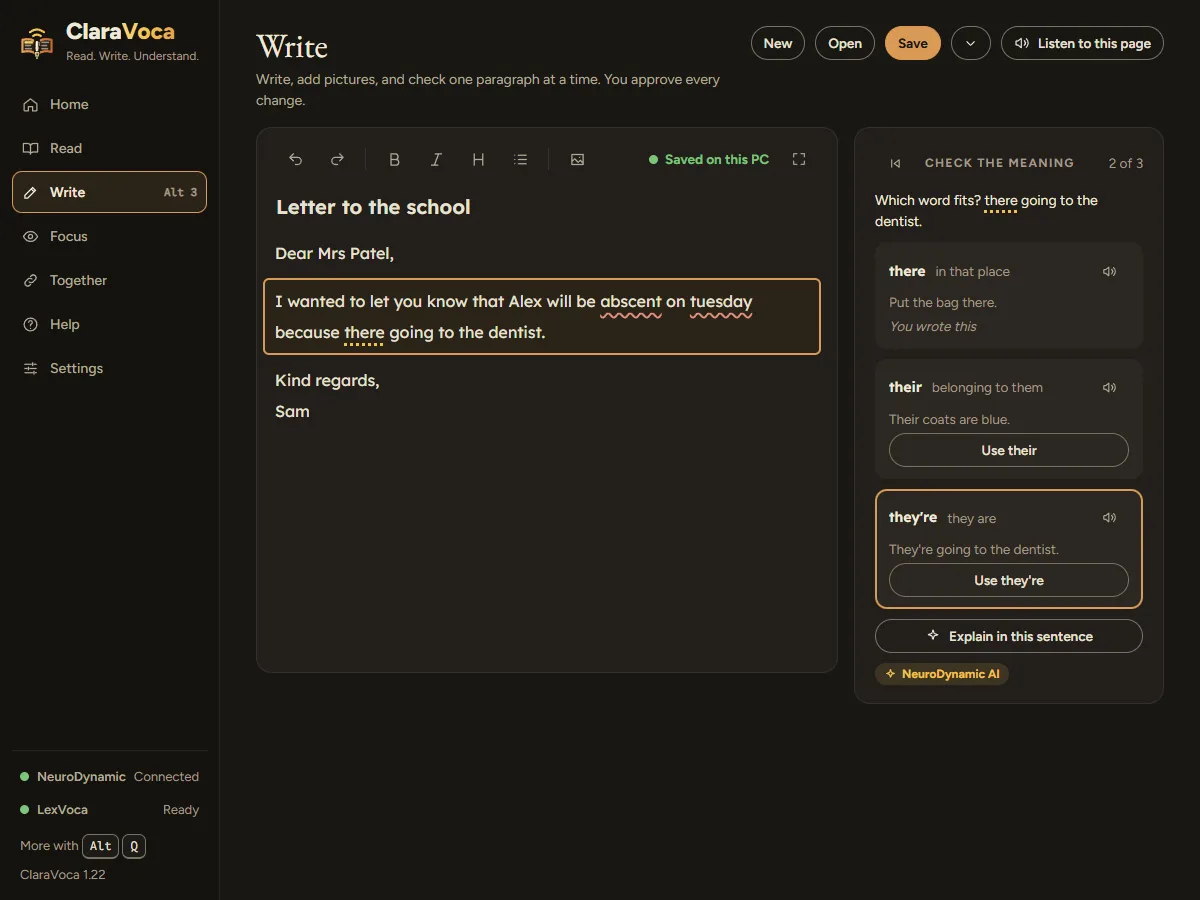
Spots words that sound right but mean something else, like “there”, “their” and “they’re”.
What it does
- In Write, choose Check the meaning. Each word it’s unsure about shows the choices and what each one means.
- Pick the one you meant, or Explain in this sentence for a short explanation.
Why
Sound-alike words are the hardest to catch, because they look right. Seeing the meanings side by side makes the choice easy.
Technical detail
- Uses NeuroDynamic AI.
Make it easier
Dense or formal text, rewritten in plain words next to the original.
What it does
- In Read > Make it easier, choose Simpler words, Short summary, Key points or Explain like I am new.
- Translate shows the text in another language, side by side.
- Show me what is sent first lets you see exactly what goes to NeuroDynamic AI.
Why
Hard text costs energy before you even get to the meaning. A plainer version next to the original helps you get there, and you can always check the original.
Technical detail
- Uses NeuroDynamic AI. Your first text is always kept.
Ease it
Colour tint and reading ruler
A soft colour over the screen, and a ruler that keeps your place.
What it does
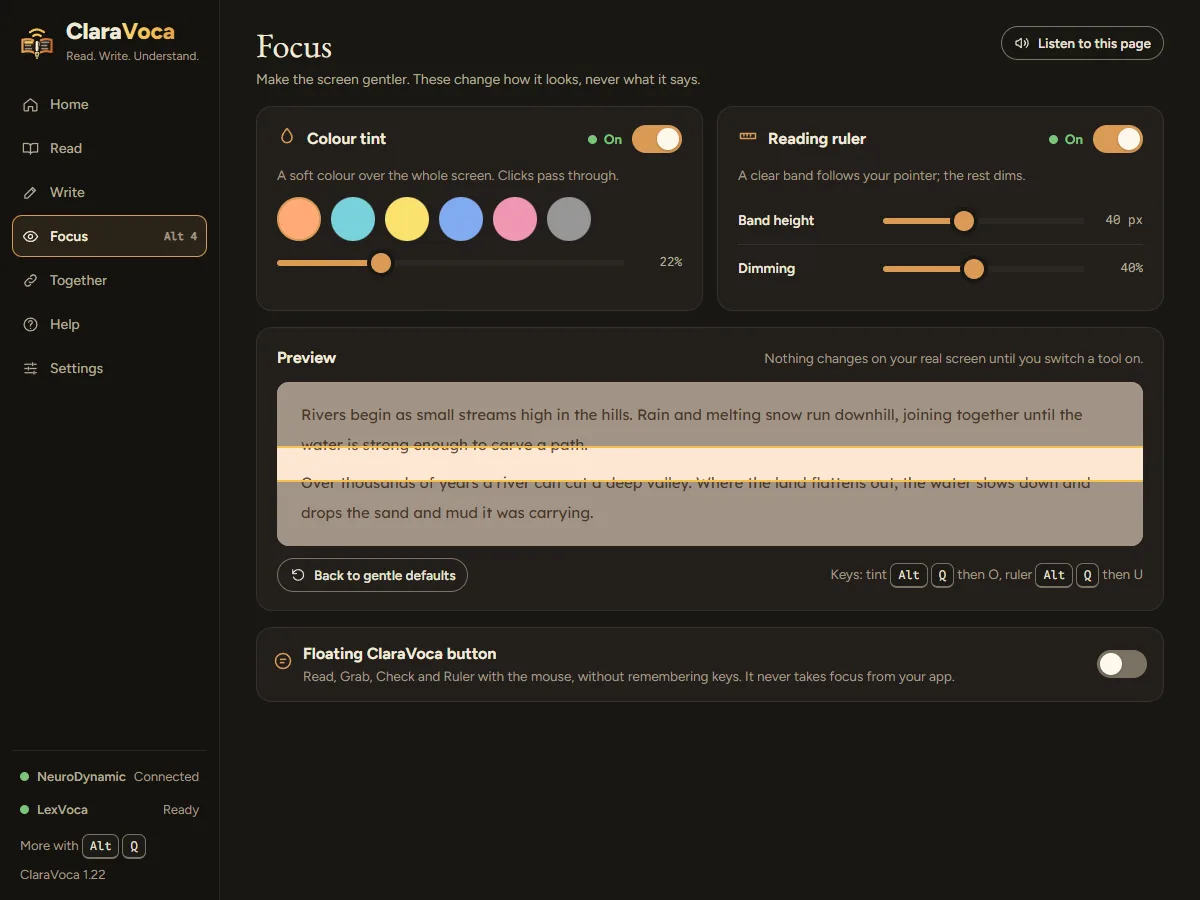
- Colour tint: six gentle colours and a strength slider. Clicks pass straight through.
- Reading ruler: a clear band that follows your pointer and dims the rest. Set its height and how much it dims.
- A live preview shows the change before it touches your screen.
- Floating ClaraVoca button: Read, Grab, Check and the ruler with the mouse, without remembering keys.
- Back to gentle defaults if you want to start again. Set your own key for the ruler in Settings > Shortcuts.
Why
Many people find a tint calms glare, and a ruler stops lines swimming. Both change how the screen looks, never what it says.
Together
Working with LexVoca and ITSpecta
Speak with LexVoca, read with ClaraVoca. One account, the same shortcuts.
What it does
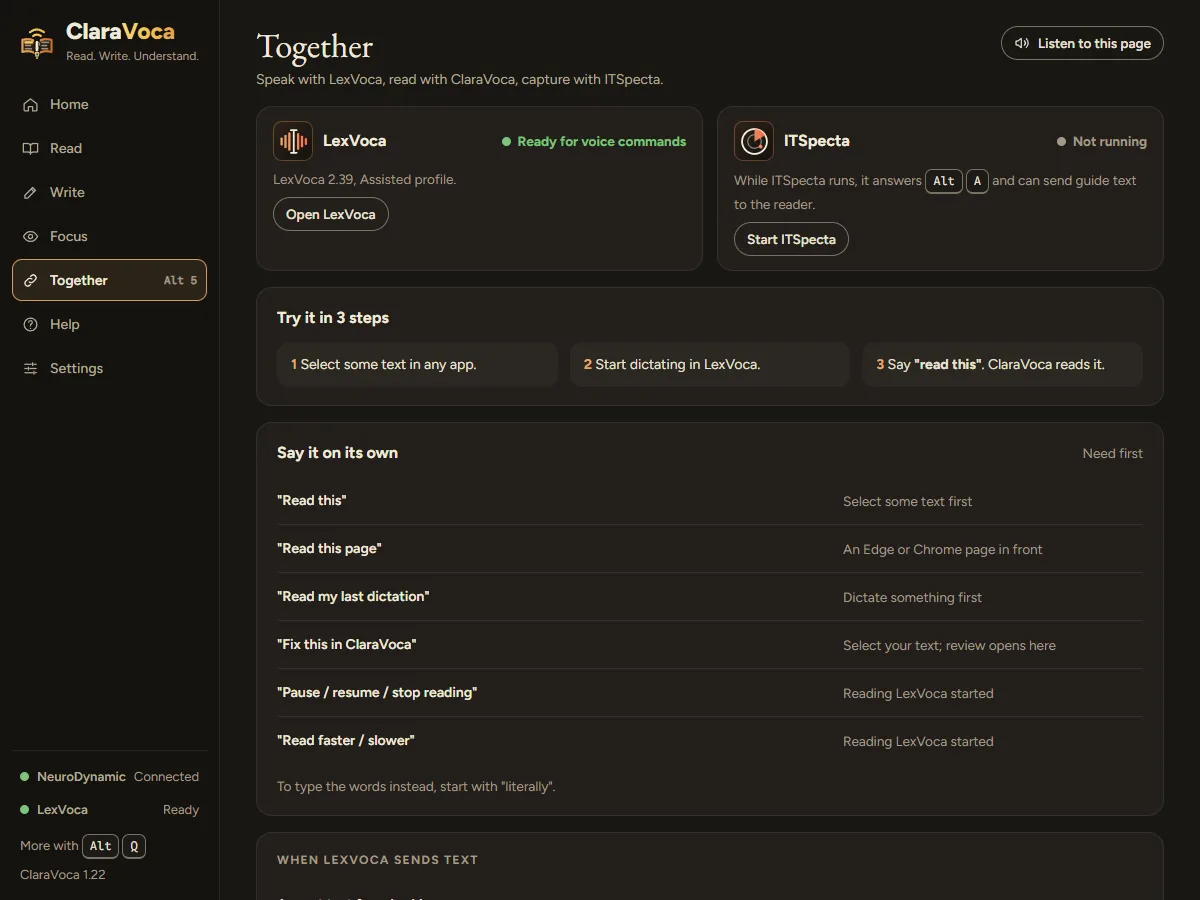
- With LexVoca running, say “read this” and ClaraVoca reads the selected text.
- Say “fix this in ClaraVoca” and your text is handed over to check.
- Other phrases: “read this page”, “read my last dictation”, and “pause”, “resume” or “stop reading”.
- Choose whether LexVoca may send you text, and whether it waits in a queue or replaces what’s reading.
Why
Writing and reading go together. Doing both by voice, without copying between apps, saves effort.
Technical detail
- The Together page shows whether LexVoca and ITSpecta are installed and running.
Settings
Settings
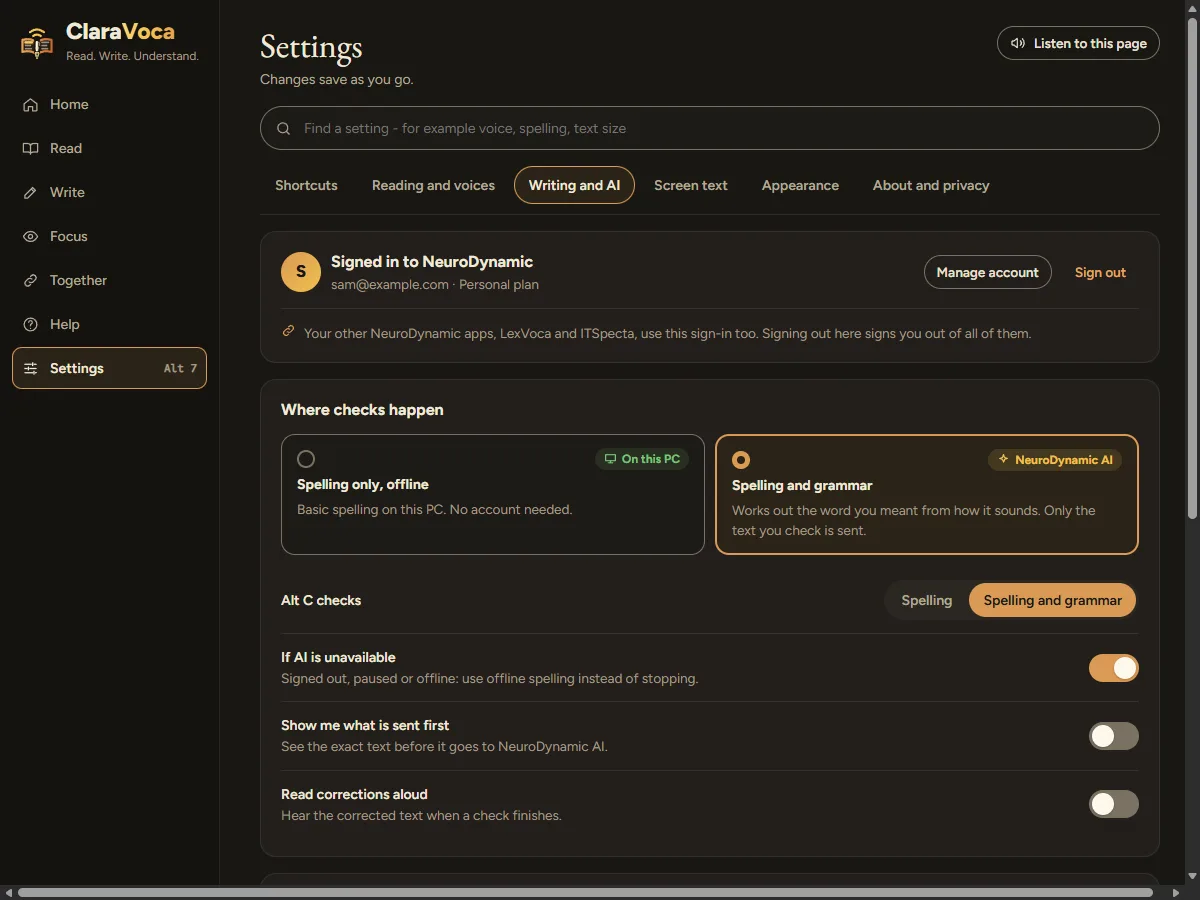
Six tabs, and a search box that finds any setting.
What it does
- Shortcuts: every key, and the family shortcuts offer.
- Reading and voices: voice, voice packs and reader autoplay.
- Writing and AI: Spelling only, offline, or NeuroDynamic AI; your account; what happens if AI is unavailable.
- Screen text: the recognition engine, layout and copy behaviour.
- Appearance: theme, font, text size, how much to show, and motion.
- About and privacy: version and updates, replay the tour, privacy, and copy the error log.
Why
Grouping settings by what you’re doing, with a search across all of them, means you never have to remember where something lives.
Good to know
Privacy and AI
What stays on your PC, and what goes to NeuroDynamic AI.
What it does
- On your PC: reading aloud with Windows or downloaded voices, screen text, the tint and ruler, and offline spelling.
- With NeuroDynamic AI: grammar, the meaning check, Explain, Easier and Translate. They run on NeuroDynamic’s own servers, never an outside AI company, and we don’t keep your text.
- Allowance: your free account includes a monthly AI allowance. ClaraVoca shows plain states such as “Running low”, never numbers.
Why
You should always know where your words go. Offline first, with AI only when you choose it.
If something doesn’t work
Most problems are a key clash, a signed-out account, or a voice that isn’t installed.
What it does
- A key does nothing: another app may use it. Change it in Settings > Shortcuts.
- AI checks are unavailable: the NeuroDynamic light in the sidebar says why. Spelling still works offline.
- No sound: check your speakers, then try another voice in Read > Voice.
- Still stuck: Settings > About and privacy > Copy the error log, then ask us.
Why
A clear reason, in plain words, is quicker to fix than an error code.